Tmux Integration with Vim/Neovim — First Steps
This is a short introduction that shows a possible workflow with tmux and Vim/Neovim.
tmux integration#
tmux offers many advantages in the context of remote access to another machine, but it also shines on a local setup! Here is how I currently like to set it up.
Configuration file#
# split panes using | and -
bind | split-window -h
bind - split-window -v
unbind '"'
unbind %

# switch panes using Alt-arrow without prefix
bind -n M-Left select-pane -L
bind -n M-Right select-pane -R
bind -n M-Up select-pane -U
bind -n M-Down select-pane -D


# Enable mouse mode (tmux 2.1 and above)
set -g mouse on

source-file "${HOME}/.tmux-themepack/blue.tmuxtheme"
This is all very self-explanatory. Many themes can be found here.
Automating the launch of a default session#
This is a small Bash script that I like to have for automatic set up of a development environment with tmux and Vim/Neovim. As my current workflow, I enjoy the following:
#!bash
# var for session name (to avoid repeated occurences)
sn=dev

tmux new-session -s "$sn" -d

# Create 3 windows
tmux new-window -t "$sn:0" -n "nvim"
tmux new-window -t "$sn:9" -n "python"
tmux new-window -t "$sn:8" -n "terminal"

# Split terminal window vertically, then split the right pane
# horizontally, then switch to the left pane (identified by `FOCUS IS
# HERE`).
# _________________
# |>_     |>_     |
# |       |       |
# | FOCUS |-------|
# | IS    |>_     |
# | HERE  |       |
# -----------------
tmux split-window -h
tmux split-window -v
tmux select-pane -L

# Set up Neovim ready to open files
tmux send-keys -t "$sn:0" C-z 'nvim .' Enter

# Set up alias for IPython and clear the screen when entering IPython
tmux send-keys -t "$sn:9" C-z 'ipython' Enter
tmux send-keys -t "$sn:9" 'clear' Enter

# Select window #0 and attach to the session
tmux select-window -t "$sn:0"
tmux -2 attach-session -t "$sn"
Aliases to make use of#
I add the following aliases in ~/.bash_aliases to automate a chunk of
the workflow:
# This will launch tmux with the desired configuration
alias dev='bash ~/.tmux_default_session.sh'

# This will kill the tmux server if the need arises. By detaching from
# the tmux session, you simply run this command and can reattach easily
# to the default session configuration on another project.
alias kdev='pkill tmux'

# If the session has been detached but the tmux server is still running,
# I use the following alias to quickly reattach to the default session
# named `dev` in that example.
alias adev='tmux attach-session -t dev'
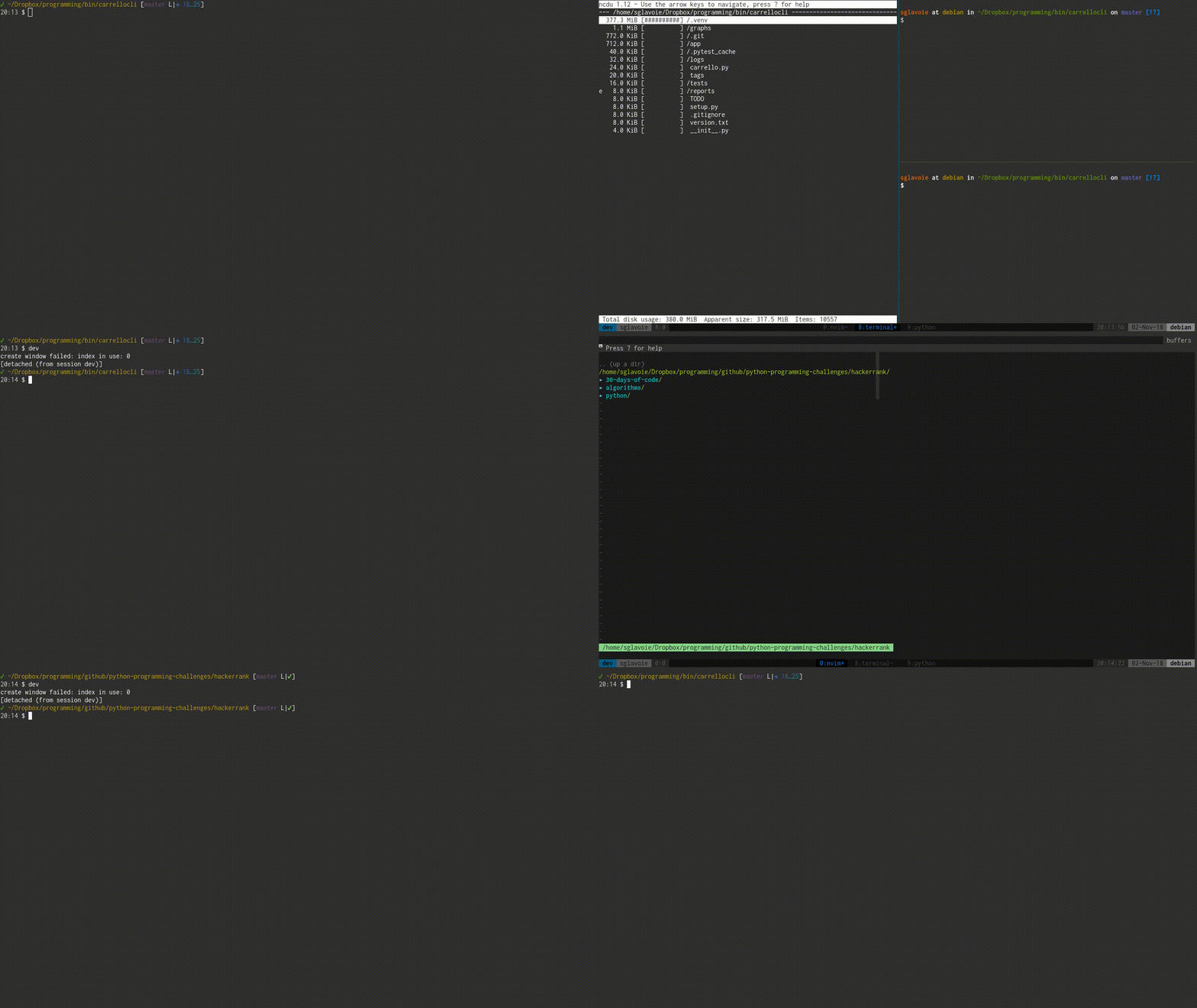
tmux demo#
(click to open image)
The content of this post can be found on GitHub.